Showing posts with label vbs. Show all posts

Sunday, December 8, 2013

vCard contact export from Excel contact list

Recently I needed a way to easily convert a list with contact information into a vCard file, respecting the vCard syntax, in order to import this vCard contact information into a phone.

After some quick Google lookup I ended with this nice Excel created and shared by Savas Geivanidis.

After entering all the contact information into the sheet as instructed, the export macro started executing it’s work and I ended with a vCard file as I wanted. But the process took very long (more than 4 minutes), even if my contact list only contained 100 contacts.

Since Savas was so kind to keep his VBS macro unprotected, I analyzed it and optimized it. The main performance issues I detected was the multiple loops and the cell deletions used in the code. A loop was set up to run over the contact data, and copy all data it into a new sheet. Next a loop was used to run through the data and delete all cell containing the value ‘no data’. Next the new sheet was saved into a text .vcf file.

After rewriting the VBS macro I ended up with one loop, running through the data and saving the information immediately into a text file. The same list of 100 contacts now takes less than 1sec to export instead of more than 4 minutes. Some tests with 1000 contacts were positive as it took only 4sec or less to export. I ended up cleaning up the full sheet and creating a template of it to allow easy reuse. Feel free to use this version 1.0 of vCard Exporter for any purpose.

The optimized source code is shown below for illustration:

Sub Create_vCard() 

'

' This Macro creates a vCard from an existing phonebook Excel list

'__________________________________________________________________

' Based on DesktopContacts v0.8 by Savas Geivanidis (savas@mycosmos.gr) egnatia.ee.auth.gr/~aki/dc/DesktopContacts0.8.xls

' Major performance improvements by myT in vCardExporter v1.0

'___________________________________________________________________

   
    Application.ScreenUpdating = False

    ' turns off screen updating

    Application.DisplayStatusBar = True

    ' makes sure that the statusbar is visible

   
    'detect number of data contacts provided

    'mainsheet = ActiveSheet.Name

    mainsheet = "PhoneBook"

    Range("A30000").Select

    Selection.End(xlUp).Select

    nod = ActiveCell.Row

    Range("B30000").Select

    Selection.End(xlUp).Select

    nod1 = ActiveCell.Row

    If nod1 > nod Then

        nod = nod1

    End If

   
    'Check if data is provided

    If nod <= 2 Then

        popup = MsgBox("No contact data could be found. Fill in the contact data in the 'PhoneBook' sheet and provide at least a first or last name for each contact." & vbLf & "See the 'Information' sheet and http://myTselection.blogpsot.com for more information", vbExclamation + vbOKOnly + vbMsgBoxSetForeground, "vCard Exporter: No data found")

        Application.ScreenUpdating = True

        Exit Sub

    End If

   
    'request target filename

    vcardname = Application.GetSaveAsFilename("", "vCard Files (*.vcf), *.vcf", , "Please select the name of the vCard to export")

    If vcardname = False Then

        Application.ScreenUpdating = True

        Exit Sub

    End If

    start_time = Now()

    Application.StatusBar = "Preparing VCARD data"


    Set vcardFileSystemObject = CreateObject("Scripting.FileSystemObject")

    Set vcardFile = vcardFileSystemObject.CreateTextFile(vcardname, True)


    'copy formula for VCARD syntax to all rows with contact data

    Range(Cells(1, 61), Cells(1, 101)).Copy

    Range(Cells(3, 61), Cells(nod, 101)).PasteSpecial Paste:=xlPasteFormulas

    Application.CutCopyMode = False

    Range("A3").Select

   
    Application.StatusBar = "Processing contact data..."

   
    vcardFile.writeline ("")

    For iRow = 3 To nod

        For iColumn = 61 To 101

            currentValue = Worksheets(mainsheet).Cells(iRow, iColumn).Value

            Application.StatusBar = "Processing contact data " & Round(((iRow - 2) / (nod - 2)) * 100) & "%" '&" on row " & iRow & ", column " & iColumn & ", value: " & currentValue

            If (currentValue <> "no data") Then

                vcardFile.writeline (currentValue)

            End If

            If currentValue = "END:VCARD" Then

                vcardFile.writeline ("")

            End If

        Next iColumn

    Next iRow

    vcardFile.Close

    Application.StatusBar = "All " & nod - 2 & " contact data processed"

   
    Worksheets(mainsheet).Range(Cells(2, 61), Cells(nod, 101)).ClearContents

    Worksheets(mainsheet).Range("A3").Select

    end_time = Now()

    'DateDiff("s", start_time, end_time)

    Application.StatusBar = "vCard export in " & PrintHrMinSec(DateDiff("s", start_time, end_time)) & "sec done into file: " & vcardname

    Application.ScreenUpdating = True

   
    If (nod - 2 = 1) Then

        popup = MsgBox(nod - 2 & " contact is exported to:" & vbLf & "'" & vcardname & "'" & vbLf & vbLf & "Please send this file to your phone and run it in order to add this contact into it." & vbLf & vbLf & "Original development 'Desktop Contacts v0.8' by Savas Geivanidis (aki@egnatia.ee.auth.gr)" & vbLf & vbLf & "Major layout and performance improvements myT in 'vCard Exporter v1.0' - http://myTselection.blogpsot.com", vbInformation + vbOKOnly + vbMsgBoxSetForeground, "vCard Exporter: data exported")

    Else

        popup = MsgBox(nod - 2 & " contacts were exported to:" & vbLf & "'" & vcardname & "'" & vbLf & vbLf & "Please send this file to your phone and run it in order to add these contacts into it." & vbLf & vbLf & "Original development 'Desktop Contacts v0.8' by Savas Geivanidis (aki@egnatia.ee.auth.gr)" & vbLf & vbLf & "Major layout and performance improvements myT in 'vCard Exporter v1.0' - http://myTselection.blogpsot.com"", vbInformation + vbOKOnly + vbMsgBoxSetForeground, "vCard Exporter: data exported")

    End If

    Application.DisplayStatusBar = True

End Sub

'***********************

'* This function calculates hours, minutes

'* and seconds based on how many seconds

'* are passed in and returns a nice format

Public Function PrintHrMinSec(elap)

  Dim hr

  Dim min

  Dim sec

  Dim remainder

 
  elap = Int(elap) 'Just use the INTeger portion of the variable

 
  'Using "\" returns just the integer portion of a quotient

  hr = elap \ 3600 '1 hour = 3600 seconds

  remainder = elap - hr * 3600

  min = remainder \ 60

  remainder = remainder - min * 60

  sec = remainder

 
  'Prepend leading zeroes if necessary

  If Len(sec) = 1 Then sec = "0" & sec

  If Len(min) = 1 Then min = "0" & min

 
  'Only show the Hours field if it's non-zero

  If hr = 0 Then

     PrintHrMinSec = min & ":" & sec

  Else

     PrintHrMinSec = hr & ":" & min & ":" & sec

  End If

 
End Function

Saturday, September 29, 2012

My Excel macro selection

Some easy to use Excel macro’s. All explained below are available in one Excel Macro Example.

All macro’s are combined in one example Excel sheet template to test the usage of it.

Password Generation

Function RndPassword(vLength)
'This function will generate a random strong password of variable
'length.
'This script is provided under the Creative Commons license located
'at http://creativecommons.org/licenses/by-nc/2.5/ . It may not
'be used for commercial purposes with out the expressed written consent
'of NateRice.com

For x = 1 To vLength
Randomize
vChar = Int(89 * Rnd) + 33
If vChar = 34 Then 'this is quote character, replace it with a single quote
vChar = 39
End If
RndPassword = RndPassword & Chr(vChar)
Next
End Function


An example usage of this Password generation function: I have a list with on each row a button to generate a password in the cell next to the button. Each button is linked to the same macro (for easy copy paste of the row). The cell to fill with the new password is automatically detected based on the cell in which the button is drawn. Before setting the new generated password, a warning is shown in a message box.


ExcelMacroPasswordGeenration


Sub Process_GenNewPassword()
Dim LRange As String
Dim RowOffset As Integer
Dim ColumnOffset As Integer
Dim newGenPassword As String
'Find cell that button resides in
LName = Application.Caller
Set bBox = ActiveSheet.Buttons(LName)
LRange = bBox.TopLeftCell.Address
RowOffset = 0 ' relative location of the row in which to work, same row used
FirstNameColumnOffset = -5 ' relative location of firstname column in row to show in warning message box
LastNameColumnOffset = -4 ' relative location of lastname column in row to show in warning message box
PasswordColumnOffset = 2 ' relative location of column in row where the generated password should be set
sResult = MsgBox("The password for user '" & Range(LRange).Offset(RowOffset, FirstNameColumnOffset).Value & " " & Range(LRange).Offset(RowOffset, LastNameColumnOffset).Value & "' will be replaced with a new random password!", vbExclamation + vbOKCancel, "New password generation")
If (sResult <> 1) Then
Exit Sub
End If
newGenPassword = RndPassword(10)
Range(LRange).Offset(RowOffset, PasswordColumnOffset).Value = newGenPassword
End Sub


Checkboxes


Checkbox LinkedCell


Whenever you need many checkboxes in your sheet, you'll probably need each checkbox to be linked to the cell it is residing on.


When copy-pasting rows or columns, the checkboxes will be copied as well, but they will still be linked to the same cell as the checkbox you started to copy-paste. The little macro shown below, will update each Checkbox on the active sheet and set it's linked cell to the cell on which the Checkbox is drawn.


Sub setCheckBoxLinkedCell()
'Loop through all Checkboxes in the active sheet
'Set for each Checkbox it's "LinkedCell" value to the cell on which the Checkbox is drawn
Application.ScreenUpdating = False
' turns off screen updating
Application.DisplayStatusBar = True
' makes sure that the statusbar is visible
Application.StatusBar = "Updating linked cells of all Checkboxes in this sheet."
For Each chk In ActiveSheet.Checkboxes
LRow = ActiveSheet.Checkboxes(chk.Name).TopLeftCell.Row
LColumn = ActiveSheet.Checkboxes(chk.Name).TopLeftCell.Column
cA1 = Application.ConvertFormula("R" & LRow & "C" & LColumn, xlR1C1, xlA1)

ActiveSheet.Shapes.Range(Array(chk.Name)).Select
With Selection
.Value = xlOff
.LinkedCell = cA1
.Display3DShading = False
End With
Next chk
Application.StatusBar = "Linked cells of all Checkboxes in this sheet are updated."
Application.ScreenUpdating = True
End Sub


Save date on Checkbox check


The macro below will set the date in the cell next to the Checkbox whenever the checkbox is checked. All checkboxes are linked to the same macro, for easy copy-pasting. The cell in which to save the date will be detected based on the checkbox location.


ExcelMacroCheckboxDate


Sub Process_CheckBox()
Dim cBox As CheckBox
Dim LRow As Integer
Dim LRange As String

LName = Application.Caller
Set cBox = ActiveSheet.Checkboxes(LName)

'Find address that checkbox resides in
LRange = cBox.TopLeftCell.Address
DateRowOffset = 0 ' row offset (relative to the checkbox location) in which the date should be set
DateColumnOffset = 1 ' column offset (relative to the checkbox location) in which the date should be set

'Change date if checkbox is checked
If cBox.Value > 0 Then
Range(LRange).Offset(DateRowOffset, DateColumnOffset).Value = Date

'Clear date if checkbox is unchecked
Else
Range(LRange).Offset(DateRowOffset, DateColumnOffset).Value = Null
End If
End Sub


Create Folder Structure


I copied my previously explained 'Create Folder Structure' in this Excel Macros Example. For all details, see my previous blog post. An import of an existing system folder structure is now added in there as well.


ExcelMacroCreateFolderStructure


Run macro upon opening a workbook


To run a macro whenever the workbook Excel sheet is opened, the Sub Workbook_Open in 'ThisWorkbook' can be used. This is needed if you want to link some keyboard keys to specific macro's.


Link keys to macro


To link a keyboard key to a specific macro action, the Application.OnKey "..." can be used in the auto startup macro. The keys must be unlinked before closing the workbook. I used this functionality in my Exam Point Counter workbook, described in this previous blog post. In 'ThisWorkbook':


'startup macro
Private Sub Workbook_Open()
Application.OnKey "t", "tKeyPressed"
Application.OnKey "e", "eKeyPressed"
Application.OnKey "s", "sKeyPressed"
Application.OnKey "t", "tKeyPressed"
End Sub
Private Sub Workbook_BeforeClose()
Application.OnKey "t"
Application.OnKey "e"
Application.OnKey "s"
Application.OnKey "t"
End Sub


In any module, for example KeyboardAction:


Sub tKeyPressed()
Application.DisplayStatusBar = True
Application.StatusBar = "t key linked to special action in KeyboardAction module"
End Sub
Sub eKeyPressed()
Application.DisplayStatusBar = True
Application.StatusBar = "e key linked to special action in KeyboardAction module"
End Sub
Sub sKeyPressed()
Application.DisplayStatusBar = True
Application.StatusBar = "s key linked to special action in KeyboardAction module"
End Sub


Search Lookup


The search lookup functionality has also been described in details in this previous blog post. The macro is included in this Excel Macro Example as well.


The formula for E9 below looks like:


 ExcelMacroSearchLookupFomula


ExcelMacroSearchLookup


Open Save


A button with linked macro to navigate to a folder is shown in the module 'OpenSave'.


A basic example of the resource exporter I showed in a previous post, is included as well. It will export the example data set into a text file, and while doing so, all special characters will be converted (eg &#233). For rows in the list of AlternativeEncoding, an alternative encoding for special characters will be used (eg \u00E9). To make the sheet readable, the special characters can be converted back into readable special characters. The conversion is based on a hex2ascii converter, unicode encoding, html encoding and decoding.


When you would reuse this code, please note, in order to support FileSystemObject, you’ll need to add reference to Microsoft scripting runtime in your Excel workbook VBA. In order to do so, open the Visual Basic environment in Excel (ALT+F11) > Menu ‘Tools’ > ‘Reference’ > Enable ‘Microsoft Scripting Runtime’. If this isn’t done in the workbook, the error ‘User defined type not defined’ will appear when writing an export file on ‘Dim fso As New FileSystemObject’.


ExcelMacroOpenSave


When the special characters are encoded using the macro, they will look like this:


ExcelMacroOpenSaveEncoded


PhoneBook vCard export


A sheet in which all phonebook data can be added (can be exported from any other application) is now available. Once all contact information is set, it can be exported into a vCard format which is supported by many address and contact management applications. More details can be found in this specific blog post.


image


All code is available in the Excel Macro Example.

Monday, November 29, 2010

Personal expense sheet

With the formula I presented in my previous blogpost on Excel look-ups I created an Excel sheet to monitor my personal expenses.
It is based on the data I extract from my different online banking systems (currently for the Belgian banks Argenta, Landbouwkrediet and KBC).


In the 'Categories' sheet, different keywords linked to the category name need to be filled in, this could be the name of a company or the account number. The keyword will be looked up in the account and comment of each transaction. And this will make it possible to automatically categorize each bank transaction and automate some analysis/summary overview on the transactions.


Every now and then, I copy the data from the online banking system into the 'data' Excel sheets. All expenses are categorized automatically with my formula in the column 'Auto Type', but if some exceptional category needs to be assigned, a 'Manual Type' column can be set to override the 'Auto Type'. Based on these categories, I created some sheets with an summary overview for each month and some averages per month and per year. This way, I can get a clean overview on our expenses and incomes and keep a copy of our banking data offline as well (since many banks only keep last 2 years online).


Based on my personal sheet I created this empty (dutch) template sheet, but it will still need some custom changes to be usable for someone else. But it could be a nice starting point.

Sunday, March 28, 2010

Exam point counter (Excel)

To help counting points during correction of the exams, I made some Excel VBS. When the exams are corrected, next to every error a -0,5 -1 or -1,5 is written, and these have to be substracted from the total points of every part. To make it possible to perform this little task one handed, I linked the 'h' key to -0,5, the 'j' key to -1 and the 'k' key to -1,5. Now the exams can be run through very fast and the result of every part is shown immediately. To keep track of the total points of every part for every student, I linked the 'x' key to save the result in a sheet with the totals. Finally, the 'c' key is linked to clear the contens of a column with all substractions of a part of the exam.


The exepected usage of the sheet:


  • fill in the totals of every part of the exam in the top most row of the first sheet (called 'Punten teller'/'Point counter').

  • (optional) if the maximum points in a part is different from the weight of that part in the complete exam, the second row in the first sheet can be used. The points will be recalculated to match the weight.

  • (optional) fill in the name of every part, for example: excercises, theory, vocabulary, etc.

  • select the cell in the fifth row of the first column an run through the exam. For each part of the exam, a next column should be used

  • while running through a part of the exam, use the keys 'h', 'j' and 'k' for every mistake in the exam, respectively substracting 0,5 1 or 1,5 points

  • when a part of the exam is finished, you can see the total points in the third row of that column

  • if you want to keep that result in the totals list, press the 'x' key, the statusbar will clearly show the changes applied in the totals list (so you don't need to switch the sheets every time to verify)

  • if you want to recount the points of that part again, press the 'c' key to clear the data of that column (exam part), without updating the totals list

  • if you want to clear the column (part of exam) and go to the next part, use the 'n' key

  • when every part is done, the points of each part will be saved in the 'Totaal'/'Total' sheet for every student, and the total is converted to a % point

  • (optional) for every student, a name can be added in the second column of the 'Totaal'/'Total' sheet

  • the total point of every part are rounded as for example 6.0; 6.1; 6.2 go to 6, 6.3,6.4,6.5,6.6 and 6.7 go to 6.5 and 6.8 and 6.9 go to 7

  • (optional) comments for the exam of every student can be added in the 'Totaal'/'Total' sheet (last column)

  • to get a nice overview of results of every student in a separate document (vakrapport/course report), a word template using Words build in MailMerge is created. It can be used in combination with a sheet based on this Excel template. The template can be updated, the result will be a separate page with points, median and comments for every individual student (a hidden sheet 'MailMerge' in the Exel template is used for this). To get best results using this template, it is advised to fill in the topics in this list marked as '(optional)'


Excel sheet template (english version, dutch 2003 version, english 2003 version) (when opening a new sheet will be created, so the template will always be kept intact)


29/03/2010: Updated template, english and 2003 versions added


04/04/2010: Updated template, added vakrapport template

Thursday, October 1, 2009

Folder structure creator - Excel VBS

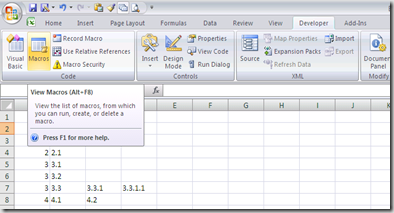
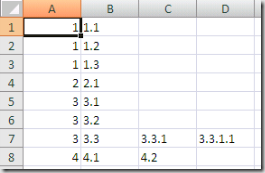
If you need to create a lot of folders and subfolders, Excel_2007.jpgwith some specific structure, it can be usefull if you can use the power of Excel to make up your folder names and structure. All kind of easy and quick formulas can be used, and once the strucuture is set up, you can easily create the empty folder structure with just one click by using this little VBS macro. The base folder used will depend on the location of the Excel file, so make sure it's saved or copied in the correct folder.
Sub CreateFolderStructure()
'Create folder for all vlues in current sheet
'folders will be created in folder where the excel file was saved
'folders will be created from first row, first column, until empty row is found
'Example expected cell structure: (data starting in current sheet, column A, row 1)
'folder1 subfolder1 subsubfolder1
'folder2
'folder3 subfolder3
'...
'this will result in:
'\folder1\subfolder1\subsubfolder1
'\folder2
'\folder3\subfolder3
'...
Set fs = CreateObject("Scripting.FileSystemObject")
For iRow = 1 To 65000
pathToCreate = ActiveWorkbook.Path
For iColumn = 1 To 65000
currValue = Worksheets(ActiveCell.Worksheet.Name).Cells(iRow, iColumn).Value
If (currValue = "") Then
Exit For
Else
pathToCreate = pathToCreate & "\" & CStr(currValue)
'MsgBox (pathToCreate)
folderToCreate = pathToCreate
If Not (fs.FolderExists(folderToCreate)) Then
fs.CreateFolder (folderToCreate)
End If
End If
Next
Next
End Sub


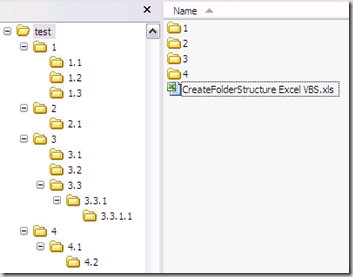
The Excel sheet with the macro can be downloaded here. Before running the macro make sure the rows and columns of the active sheet are filled in correctly. Next simply run the macro by using the button. foldercreatorexcel1foldercreatorexcel2 foldercreatorexcel3foldercreatorexcel4

If you created to many empty folders by accident, you can easily remove them again using this little tool: Remove Empty Directories


Update 13/11/2009: Modified the Excel VBS script to let you navigate to the desired base folder upon launching the macro, so the Excel file may now be saved at any location, the base folder will have to be specified upon launching the macro.


Update 21/04/2012: Someone commented the VBS code is not working correctly when using some special characters. This is because some characters are not supported by Windows to be used in a file or folder name.


FolderChar


I updated the VBS code in the Excel sheet to make sure these special characters are removed before trying to create the folders.


The Excel sheet is updated, also an Excel template is available.


An example with special characters and the resulting folders created:


FolderSpecialCharsExample


The new VBS code used is:


Sub CreateFolderStructure()
'Create folder for all vlues in current sheet
'folders will be created in folder where the excel file was saved
'folders will be created from first row, first column, until empty row is found
'Example expected cell structure: (data starting in current sheet, column A, row 1)
'folder1    subfolder1  subsubfolder1
'folder2
'folder3    subfolder3
'           subfolder4
'...
'this will result in:
'\folder1\subfolder1\subsubfolder1
'\folder2
'\folder3\subfolder3
'\folder3\subfolder4
'...
    baseFolder = BrowseForFolder
    If (baseFolder = False) Then
        Exit Sub
    End If
    Set fs = CreateObject("Scripting.FileSystemObject")
    For iRow = 2 To 6500
        pathToCreate = baseFolder
        leafFound = False
        For iColumn = 1 To 6500
            currValue = Trim(Replace(Replace(Replace(Replace(Replace(Replace(Replace(Worksheets(ActiveCell.Worksheet.Name).Cells(iRow, iColumn).Value, ":", ""), "*", ""), "?", ""), Chr(34), ""), "<", ""), ">", ""), "|", ""))
            If (currValue = "" And leafFound) Then
                Exit For
            ElseIf (currValue = "") Then
                parentFolder = FindParentFolder(iRow, iColumn)
                parentFolder = Replace(Replace(Replace(Replace(Replace(Replace(Replace(parentFolder, ":", ""), "*", ""), "?", ""), Chr(34), ""), "<", ""), ">", ""), "|", "")
                If (parentFolder = False) Then
                    Exit For
                Else
                    pathToCreate = pathToCreate & "\" & parentFolder
                    If Not (fs.FolderExists(pathToCreate)) Then
                        CreateDirs (pathToCreate)
                    End If
                End If
            Else
                leafFound = True
                pathToCreate = pathToCreate & "\" & currValue
                If Not (fs.FolderExists(pathToCreate)) Then
                    CreateDirs (pathToCreate)
                End If
            End If
        Next
        If (leafFound = False) Then
            Exit For
        End If
    Next
End Sub

Function FindParentFolder(row, column)
    For iRow = row To 0 Step -1
        currValue = Worksheets(ActiveCell.Worksheet.Name).Cells(iRow, column).Value
        If (currValue <> "") Then
            FindParentFolder = CStr(currValue)
            Exit Function
        ElseIf (column <> 1) Then
            leftValue = Worksheets(ActiveCell.Worksheet.Name).Cells(iRow, column - 1).Value
            If (leftValue <> "") Then
                FindParentFolder = False
                Exit Function
            End If
        End If
    Next
End Function


Function BrowseForFolder(Optional OpenAt As Variant) As Variant
     'Function purpose:  To Browser for a user selected folder.
     'If the "OpenAt" path is provided, open the browser at that directory
     'NOTE:  If invalid, it will open at the Desktop level
     
    Dim ShellApp As Object
     
     'Create a file browser window at the default folder
    Set ShellApp = CreateObject("Shell.Application"). _
    BrowseForFolder(0, "Please choose a folder", 0, OpenAt)
     'Set the folder to that selected.  (On error in case cancelled)
    On Error Resume Next
    BrowseForFolder = ShellApp.self.Path
    On Error GoTo 0
     
     'Destroy the Shell Application
    Set ShellApp = Nothing
     
     'Check for invalid or non-entries and send to the Invalid error
     'handler if found
     'Valid selections can begin L: (where L is a letter) or
     '\\ (as in \\servername\sharename.  All others are invalid
    Select Case Mid(BrowseForFolder, 2, 1)
    Case Is = ":"
        If Left(BrowseForFolder, 1) = ":" Then GoTo Invalid
    Case Is = "\"
        If Not Left(BrowseForFolder, 1) = "\" Then GoTo Invalid
    Case Else
        GoTo Invalid
    End Select
     
    Exit Function
     
Invalid:
     'If it was determined that the selection was invalid, set to False
    BrowseForFolder = False
     
End Function

Sub CreateDirs(MyDirName)
' This subroutine creates multiple folders like CMD.EXE's internal MD command.
' By default VBScript can only create one level of folders at a time (blows
' up otherwise!).
'
' Argument:
' MyDirName   [string]   folder(s) to be created, single or
'                        multi level, absolute or relative,
'                        "d:\folder\subfolder" format or UNC
'
' Written by Todd Reeves
' Modified by Rob van der Woude
' http://www.robvanderwoude.com

    Dim arrDirs, i, idxFirst, objFSO, strDir, strDirBuild

    ' Create a file system object
    Set objFSO = CreateObject("Scripting.FileSystemObject")

    ' Convert relative to absolute path
    strDir = objFSO.GetAbsolutePathName(MyDirName)

    ' Split a multi level path in its "components"
    arrDirs = Split(strDir, "\")

    ' Check if the absolute path is UNC or not
    If Left(strDir, 2) = "\\" Then
        strDirBuild = "\\" & arrDirs(2) & "\" & arrDirs(3) & "\"
        idxFirst = 4
    Else
        strDirBuild = arrDirs(0) & "\"
        idxFirst = 1
    End If

    ' Check each (sub)folder and create it if it doesn't exist
    For i = idxFirst To UBound(arrDirs)
        strDirBuild = objFSO.BuildPath(strDirBuild, arrDirs(i))
        If Not objFSO.FolderExists(strDirBuild) Then
            objFSO.CreateFolder strDirBuild
        End If
    Next

    ' Release the file system object
    Set objFSO = Nothing
End Sub


11/10/2012: I updated the VBS code in the Excel sheet to make sure these special characters are removed before trying to create the folders. Extra input information and validation is added to make sure invalid characters can not be used. The Excel sheet is updated


08/08/2013: Updated sheets, added a trim to remove spaces at begin and end of cell value, since this could result in macro exception (see comments)


17/02/2014: I’ve extended this workbook with a new sheet in which the nested folder structure of the filesystem can be imported. Each folder name will be stored in a separate cell respecting the nested structure


The new VBS code is:


Sub ImportFolderStructure()
'Import folder structure starting from selected base folder
'each subfolder will be stored in a separete cell
'eg:
'Folder 1|Subfolder1|SubSubfolder1
'Folder 2|Subfolder2
'Folder 3|Subfolder3|SubSubfolder3
'...
    Application.ScreenUpdating = False
    baseFolder = BrowseForFolder
    If (baseFolder = False) Then
        Exit Sub
    End If
    Application.StatusBar = "Folder structure below " & baseFolder & " will be stored in the sheet " & ActiveCell.Worksheet.Name
    StoreSubFolder baseFolder, 1, 0
    Application.StatusBar = "Folder structure below " & baseFolder & " has been stored in the sheet " & ActiveCell.Worksheet.Name
    Range("A2").Select
    Application.ScreenUpdating = True
End Sub

Sub StoreSubFolder(baseFolderObj, ByRef iRow, ByVal iColumn)
    Set fs = CreateObject("Scripting.FileSystemObject")
    Set folderBase = fs.GetFolder(baseFolderObj)
    Set folderBaseSubs = folderBase.SubFolders
    iRow = iRow + 1
    iColumn = iColumn + 1
    For Each subFolder In folderBaseSubs
        Worksheets(ActiveCell.Worksheet.Name).Cells(iRow, iColumn).Value = subFolder.Name
        StoreSubFolder subFolder, iRow, iColumn
    Next
End Sub

Sub ClearImportData()
    Application.ScreenUpdating = False
    Range("A2").Select
    Range(Selection, ActiveCell.SpecialCells(xlLastCell)).Select
    Selection.ClearContents
    Range("A2").Select
    Application.ScreenUpdating = True
End Sub

Sub CreateFolderStructure()
'Create folder for all vlues in current sheet
'folders will be created in folder where the excel file was saved
'folders will be created from first row, first column, until empty row is found
'Example expected cell structure: (data starting in current sheet, column A, row 1)
'folder1    subfolder1  subsubfolder1
'folder2
'folder3    subfolder3
'           subfolder4
'...
'this will result in:
'<currentpath>\folder1\subfolder1\subsubfolder1
'<currentpath>\folder2
'<currentpath>\folder3\subfolder3
'<currentpath>\folder3\subfolder4
'...
    baseFolder = BrowseForFolder
    If (baseFolder = False) Then
        Exit Sub
    End If
    Set fs = CreateObject("Scripting.FileSystemObject")
    For iRow = 2 To 6500
        pathToCreate = baseFolder
        leafFound = False
        For iColumn = 1 To 6500
            currValue = Trim(Replace(Replace(Replace(Replace(Replace(Replace(Replace(Replace(Replace(Worksheets(ActiveCell.Worksheet.Name).Cells(iRow, iColumn).Value, ":", "-"), "*", "-"), "?", "-"), Chr(34), "-"), "<", "-"), ">", "-"), "|", "-"), "/", "-"), "\", "-"))
            Worksheets(ActiveCell.Worksheet.Name).Cells(iRow, iColumn).Value = currValue
            If (currValue = "" And leafFound) Then
                Exit For
            ElseIf (currValue = "") Then
                parentFolder = FindParentFolder(iRow, iColumn)
                If (parentFolder = False) Then
                    Exit For
                Else
                    pathToCreate = pathToCreate & "\" & parentFolder
                    If Not (fs.FolderExists(pathToCreate)) Then
                        CreateDirs (pathToCreate)
                    End If
                End If
            Else
                leafFound = True
                pathToCreate = pathToCreate & "\" & currValue
                If Not (fs.FolderExists(pathToCreate)) Then
                    CreateDirs (pathToCreate)
                End If
            End If
        Next
        If (leafFound = False) Then
            Exit For
        End If
    Next
End Sub

Function FindParentFolder(row, column)
    For iRow = row To 0 Step -1
        currValue = Worksheets(ActiveCell.Worksheet.Name).Cells(iRow, column).Value
        If (currValue <> "") Then
            FindParentFolder = CStr(currValue)
            Exit Function
        ElseIf (column <> 1) Then
            leftValue = Worksheets(ActiveCell.Worksheet.Name).Cells(iRow, column - 1).Value
            If (leftValue <> "") Then
                FindParentFolder = False
                Exit Function
            End If
        End If
    Next
End Function

Function BrowseForFolder(Optional OpenAt As Variant) As Variant
     'Function purpose:  To Browser for a user selected folder.
     'If the "OpenAt" path is provided, open the browser at that directory
     'NOTE:  If invalid, it will open at the Desktop level
     
    Dim ShellApp As Object
     
     'Create a file browser window at the default folder
    Set ShellApp = CreateObject("Shell.Application"). _
    BrowseForFolder(0, "Please choose a folder", 0, OpenAt)
     'Set the folder to that selected.  (On error in case cancelled)
    On Error Resume Next
    BrowseForFolder = ShellApp.self.Path
    On Error GoTo 0
     
     'Destroy the Shell Application
    Set ShellApp = Nothing
     
     'Check for invalid or non-entries and send to the Invalid error
     'handler if found
     'Valid selections can begin L: (where L is a letter) or
     '\\ (as in \\servername\sharename.  All others are invalid
    Select Case Mid(BrowseForFolder, 2, 1)
    Case Is = ":"
        If Left(BrowseForFolder, 1) = ":" Then GoTo Invalid
    Case Is = "\"
        If Not Left(BrowseForFolder, 1) = "\" Then GoTo Invalid
    Case Else
        GoTo Invalid
    End Select
     
    Exit Function
     
Invalid:
     'If it was determined that the selection was invalid, set to False
    BrowseForFolder = False
     
End Function

Sub CreateDirs(MyDirName)
' This subroutine creates multiple folders like CMD.EXE's internal MD command.
' By default VBScript can only create one level of folders at a time (blows
' up otherwise!).
'
' Argument:
' MyDirName   [string]   folder(s) to be created, single or
'                        multi level, absolute or relative,
'                        "d:\folder\subfolder" format or UNC
'
' Written by Todd Reeves
' Modified by Rob van der Woude
' http://www.robvanderwoude.com

    Dim arrDirs, i, idxFirst, objFSO, strDir, strDirBuild
    ' Create a file system object
    Set objFSO = CreateObject("Scripting.FileSystemObject")
    ' Convert relative to absolute path
    strDir = objFSO.GetAbsolutePathName(MyDirName)
    ' Split a multi level path in its "components"
    arrDirs = Split(strDir, "\")
    ' Check if the absolute path is UNC or not
    If Left(strDir, 2) = "\\" Then
        strDirBuild = "\\" & arrDirs(2) & "\" & arrDirs(3) & "\"
        idxFirst = 4
    Else
        strDirBuild = arrDirs(0) & "\"
        idxFirst = 1
    End If

    ' Check each (sub)folder and create it if it doesn't exist
    For i = idxFirst To UBound(arrDirs)
        strDirBuild = objFSO.BuildPath(strDirBuild, arrDirs(i))
        If Not objFSO.FolderExists(strDirBuild) Then
            objFSO.CreateFolder strDirBuild
        End If
    Next

    ' Release the file system object
    Set objFSO = Nothing
End Sub


The Excel file can be downloaded as XLS (template for easy reuse). My Excel sheet with combined macro’s has been updated as well, see this blog post.


Update 27/05/2014: cleanup of the cell types (some cell were saved as type ‘Scientific’ resulting in some strange representation after import of folders named with numbers, Thanks to Jean for reporting)

Friday, April 3, 2009

Excel resource exporter – special characters (Unicode) convertor

Excel_2007On many project I worked, we often keep some program resources in an Excel sheet (labels, translations, static data,  etc.). Excel makes it easy to get an overview of all language translations next to each other and we can easily export this data to text files to be used by our applications.

In one sheet, we also wanted to convert all special characters (e.g. é, ü, etc) to their special notation that will be threaded correctly into our Java application (e.g. è becomes &#232;). And we even used some labels inside JavaScript popup where we wanted a Unicode representation for special characters and some escaped characters (e.g. é becomes \u00E9).

To export all this data, but also make the Excel sheet readable, I implemented some VBS to convert and export the data of the sheet. I even added some extras, for example to make an archive of the exported data, to easily select a folder with a navigator, make the complete sheet readable (convert special characters) etc. All settings can easily be configured.

I suppose parts of the VBS and the look-and-feel can be reused in some other projects, the Excel sheet can be downloaded here.