Showing posts with label grep. Show all posts

Monday, November 16, 2009

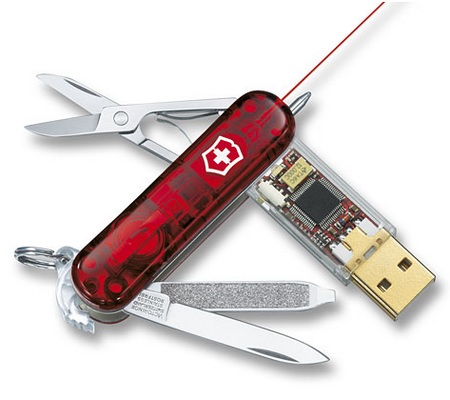
Recovery tools boot USB stick


Based on Hiren's Boot CD 12 I created my personal Boot USB stick to be as complete as possible (containing more than 500 portable tools, 2,30GB). The original Hiren recovery CD contains many very useful tools to recover, tweak or patch pc's, divided into the following categories: Partition Tools, Backup Tools, Recovery Tools, Testing tools, RAM testing tools, Hard disk tools, System information tools, Master Boot Recovery tools, BIOS CMOS tools, Multimedia tools, Password tools, NTFS tools, Browser File manager tools, Other tools, Dos tools, Optimizers, Network tools, Process tools, Registry tools, Startup tools, Tweakers and Antivirus tools. A portable 'mini Windows XP' that can be run from the stick is available as well at boot time.


Many of the tools are available by booting up from the USB stick, but others need to be run into a Windows environment. These windows tools can be easily accessed by using the 'HBCDMenu.exe' tool which will be started when the cd or USB stick is started within a running Windows environment. Since the tools available within the 'HBCDMenu.exe' can be configured very easily using a 'HBCDMenu.csv' file, I created an Excel file to change the configuration an export to the csv file easier. Using this Excel it is much easier to move and rearrange the tools. Next I added all the tools I was still missing to make them available through the 'HBCDMenu.exe' tool. All tools are started using a DOS bat script and an UHARC archive. The archive is extracted in the PC's %temp% folder and started. All tools should be completely portable so no tool settings in the registry are kept after running them. I created a generic batch script to be able to run all tools in different modes: normal, just open a command window, just open an explorer windows, run the tool in Sandboxie, show online info on the tool, convert the tool into a zip file, force extraction of the uharc file. The mode is set by creating a specific file in the %temp% folder.


I keep all my personal files in a secured FreeOTFE file to make sure if I ever lose the stick no personal information can be discovered.


Besides the Hiren tools I also converted the latest BackTrack 4 bootable ISO to make it boot from a USB stick and added this into the Hiren boot screen menu. This live cd linux distribution is focused on penetration testing and perfect for quick and easy WEP cracking.


On the website of Hiren, a good explanation is provided by Hiren on how to easily convert the BootCD into a bootable USB stick using Grub4Dos. I used this 'menu.lst' as boot menu so it includes the launch of the BackTrack live environment and portable Mini Windows XP. Within an Windows environment, this 'autorun.inf' file is used to make it easier to start the 'autorun.exe' tool and other commonly used tools. To keep a backup of all my configuration, I configured a specific portable Dropbox so I can access all my tools online and keep them in sync on different locations.


The USB stick with all the extra tools requires now at least 2,29GB (I use it on a 8GB stick). I also added many of my extra tools into the CD iso file, but to keep it burnable onto a 80minute CD, some of the large tools didn't fit (office portable, tor browser, skype, toad, oracle client).


Compared to the original Hiren 10 boot cd, I've added different Windows tools. In the HBCDMenu cvs creator Excel, the complete list of all the tools are ordered in comprehensive categories. Many of these tools come from Sysinternals and Nirsoft since they provide some very useful portable little tools.


Update 25/11/2009: removed long list of personally added tools
Update 3/12/2010: update for Hiren Boot CD 12

Monday, May 11, 2009

LogExpert - Windows tail freeware

Today I tested yet another Windows tail application, LogExpert, and I was very amazed with its features!
It has most of the features I'm used to work with in BareTail Pro, like adding some filters (regex) or highlighting lines matching some text. And unlike WinLogTail, it does support opening multiple files at one with a tabbed interface as in BareTail.
Besides all this, I really appreciate the following functions:
  • run some specified application and providing some information of the selected line. This way, one can easily open the tailed file within UltraEdit on the selected line.
  • parse the timestamps of a log file and show these in separated columns
  • freeze some columns to make these alway be shown and only scrolling other columns (horizontal scrolling)
  • advanced filtering with possibility to show some lines before or after the line matching your filter
  • activate an 'edit' mode to easily copy some parts of a line
  • add some bookmarks and comments on a line to easily find these back afterwards
  • support for multifiles (show files as app.log, app.log1, app.log2, etc as one big file)
  • support for different files provided on the command line while opening, so the scripts we used to open many files with BareTail also work with LogExpert (but opening many files from shared drives is not as lighting fast as with BareTail)

So, compared to BareTail it has many benefits and it's completely free! But one should know, it's not always as fast and stable as BareTail, but so far it worked very well for me.

Some nice screenshots (but those only show a small subset of all it's features):

Friday, March 27, 2009

BareTail easy (scripted) usage

We use BareTail a lot, since it’s so fast and easy to work with, even on very large log files.

To make is easier for ourselves, we created some (batch) scripts to quickly open our log files using BareTail.

Our template for such a batch script is shown below, maybe it can be useful for others:

@echo off
@rem example to connect to network share
@net use "\\<ip-adres>" /d
@net use "\\<ip-adres>" /USER:<username> "<password>"
rem add the full path to the baretail executable as a system variable
rem go to Start -> Run -> control Sysdm.cpl,,3 -> Environment variables -> new -> name: baretail, value: C:\Program Files\BareTail\baretail.exe
rem or use 'setx baretail C:\Program Files\BareTail\baretail.exe'
rem if the env variable is not set, the default value will be used. 
@if "%baretail%" =="" set baretail=C:\Program Files\BareTail\baretail.exe
rem add all log files to be opened in list below, delimited with a space
@set files=\\<ip-adres>\<path-to-log-file> \\<ip-adres>\<path-to-log-file> 
@start "baretail" "%baretail%" %files%
@echo on


To easily tail all log files in the current directory:


setlocal ENABLEDELAYEDEXPANSION
if "%baretail%" =="" set baretail=C:\Program Files\BareTail\baretail.exe
SET FILES=
for /f "delims=" %%i in ('dir /a-d/s/b "*.log"') do SET FILES=!FILES! "%%i"
start "tail" "%baretail%" %files%


Easily clear up all log files in the current directory by moving them into a WinRAR archive:


@echo off
SET WIN_RAR_APP=c:\program files\winrar\rar.exe
SET BACKUP_LOGS_DIR=backup_logs
setlocal ENABLEDELAYEDEXPANSION
SET FILES=
for /f "delims=" %%i in ('dir /a-d/s/b "*.log"') do SET FILES=!FILES! "%%i"
mkdir "%BACKUP_LOGS_DIR%"
SET Today=%Date: =.%
SET Today=%Today:~-4%.%Date:~-7,2%.%Date:~-10,2%
SET Now=%Time: =0%
SET Now=%Now::=.%
set archivename="logs_%Today%-%Now%.rar"
set archivename="%archivename: =%"
"%WIN_RAR_APP%" m "%BACKUP_LOGS_DIR%\%archivename%" %files%


Update 26/04/2009: added scripts for logs in current directory.

Thursday, February 19, 2009

BareGrep + BareTail + UltraEdit


Monitoring very large (log)files can be done very easily with BareGrep and BareTail. Those very little applications can make a big difference when it comes to productivity and speed during monitoring of production critical systems.

Although the applications are running fine, I was often missing some small extra features. So I made some small AutoHotKey script to get what I wanted:
  • Within BareGrep: press Ctrl+Shift+U: open the file in UltraEdit and scroll to the line that was selected within BareGrep
  • Within BareGrep: press Ctrl+Shift+F: open the selected file in BareTail and find the selected line.
Besides these extra keyboard shortcuts, I also made some registry changes to add extra options in the context menu when right-clicking on a file or folder: 'Grep this folder' option will be added, which will launch BareGrep with the correct folder selected.

My complete automated setup of BareTail+ can be downloaded here. All source files are included.

Tested on Windows XP, no uninstaller available.
Update 14/09/2010: new version of AutoHotKeyScript with properties for paths of BareGrep, BareTail and editor. New version of the 'grep this folder' explorer integration.

Update 23/11/2010 v1.1: new version with support for Notepad++ editor linenumber syntax ( -n)
Update 10/03/2016 v2.0: new version with support for Ctrl+Shift+e to view selected file in Explorer, Ctrl+Shift+N (same as Ctrl+Shift+U) open selected file in text editor, integrate admin elevation when enabling or disabling explorer integration to write to registry, store user config in %userprofile% dir instead of program files dir so no admin elevation is required for preference update and config storage.